How to Display All Your Reolink Cameras on One Large 24-Inch Android Display
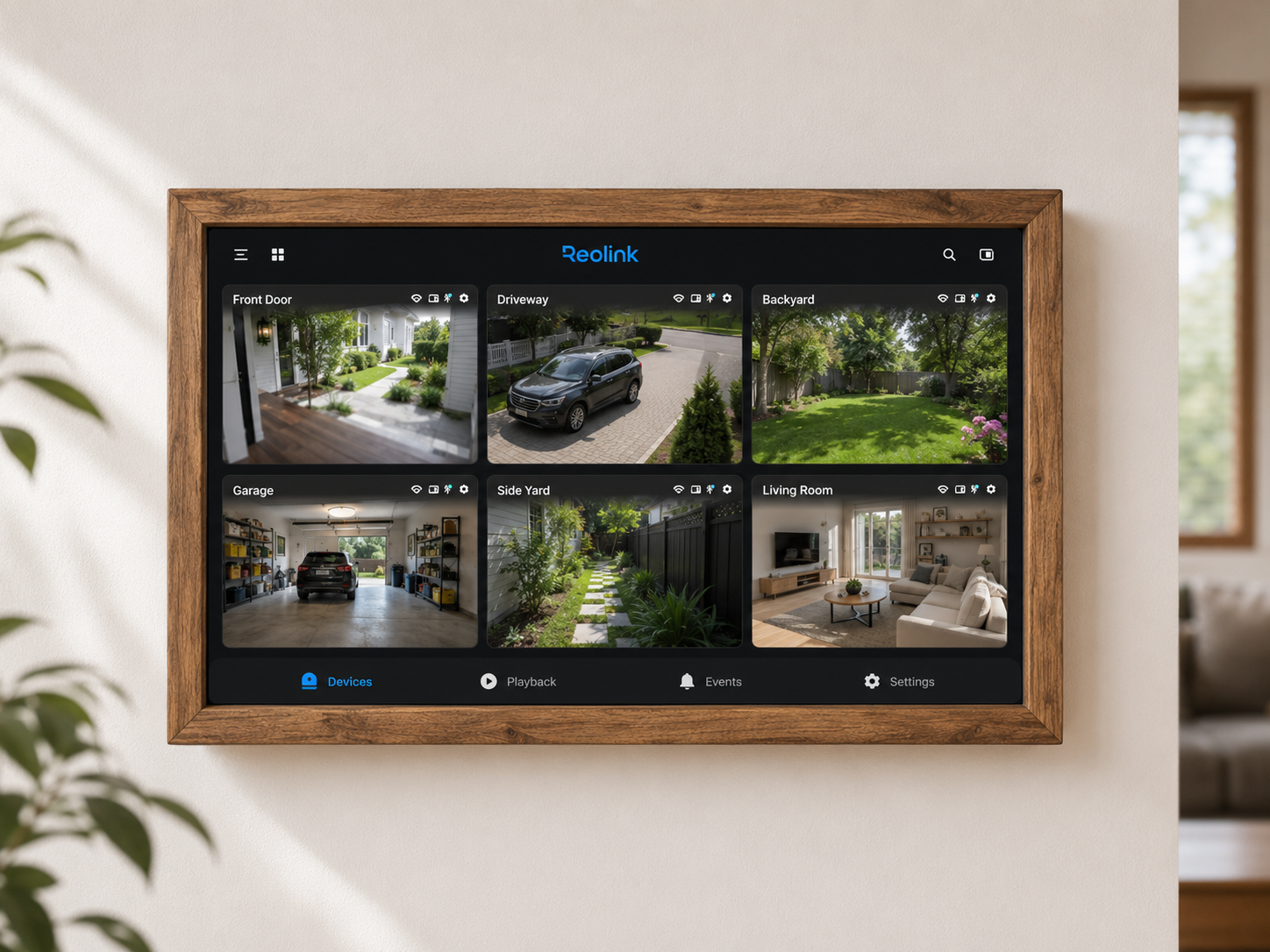
You can display Reolink cameras on one large Android display if you install the official Reolink App on it, add your cameras or NVR, and enable the multi-camera viewing mode. This setup is especially convenient for a home, office, shop, warehouse, workshop, reception desk, or small video surveillance system where you do not want to use a separate computer, an HDMI TV, a complex NVR monitor, or a custom Home Assistant dashboard.
The idea is simple: instead of viewing your Reolink cameras on a small phone screen, you use a 24-inch Android display as a dedicated security monitoring screen. On that screen, you can open the Reolink App, add all your cameras, and see the overall situation: front door, yard, parking area, garage, warehouse, corridor, checkout area, or children’s room.
There is one important consideration: an Android display with the Reolink App is a convenient viewing panel, but it is not always a full replacement for a professional video recorder, a Reolink NVR, or the Reolink Client on a computer. Everything depends on the number of cameras, video stream resolution, Android display performance, Wi-Fi quality, and whether you only need live view or also continuous video recording.
Who This Reolink Setup Is Suitable For
This solution is suitable for Reolink users who already have one or more cameras and want to view them on a large screen without complicated setup. For example, you may have a Reolink Doorbell at the entrance, several PoE cameras around the house, a Wi-Fi camera in the garage, and a camera on the terrace. You can view all of this on a phone, but a small screen is inconvenient, especially when you need to quickly assess the situation.
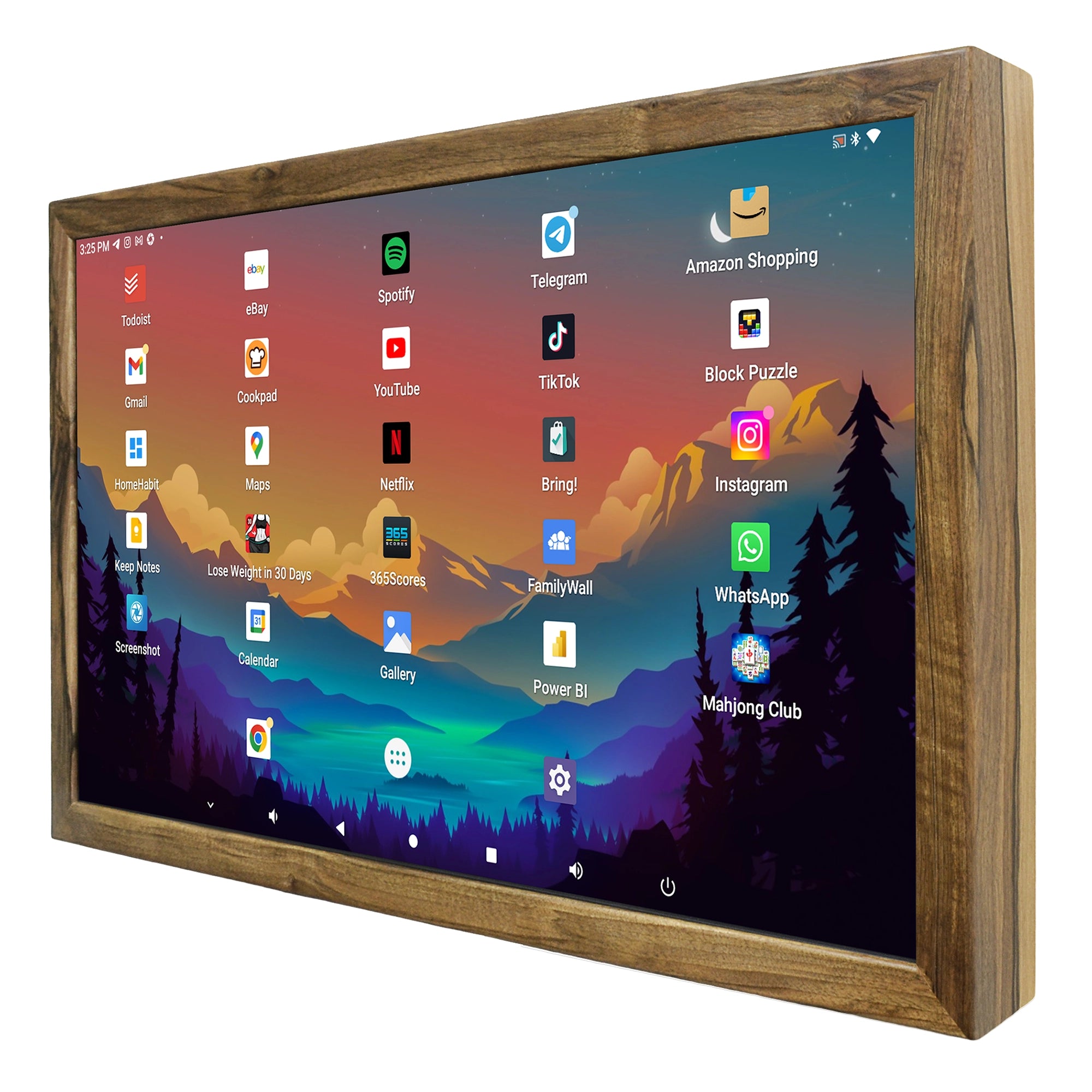
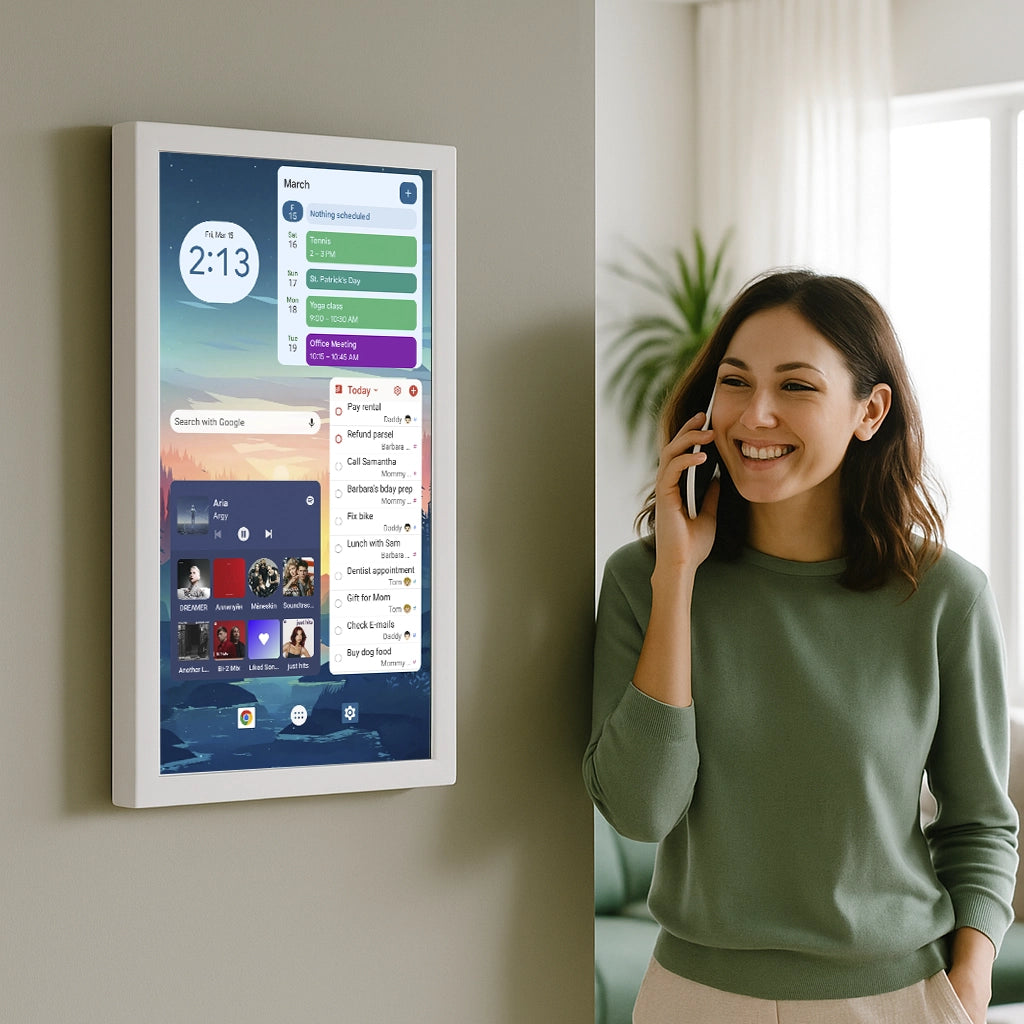
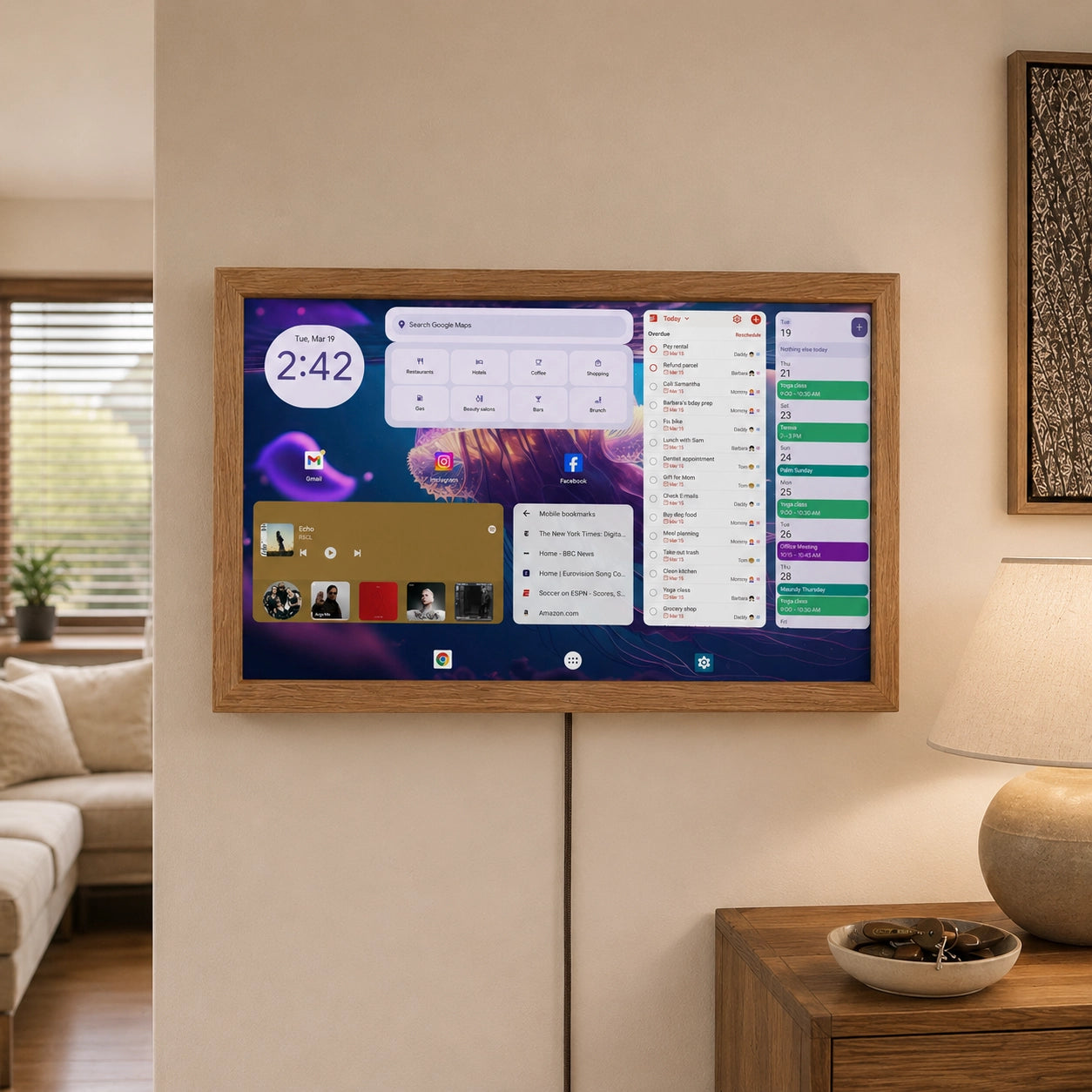
A 24-inch Android display solves this problem. It is large enough for camera images to be clearly visible from a distance, but not as bulky as a television. It can be placed on a desk, mounted on a wall, used at a reception desk, or installed in a technical room. The display is touch-enabled, so controlling the Reolink App remains familiar: you can open the required camera, switch stream quality, view recordings, enable audio, or switch to full-screen mode.
This type of screen is especially useful in three scenarios. The first is home security: seeing the entrance, yard, gate, and garage on one display. The second is small business: a shop, office, workshop, warehouse, or café where several zones need to be monitored quickly. The third is use by elderly parents or family members: a large screen is easier than a phone, and it can be left permanently switched on in a convenient location.
What You Need for It to Work
For the basic setup, you need three things: Reolink cameras, an Android display, and a stable network. By Android display we mean the device with Android built in: a touch-enabled Android panel.
The best option is a 24-inch Android display with Google Play, touch control, stable Wi-Fi or Ethernet, and sufficient performance. For regular users, it is safer to choose a display that has Google Play Store and allows the official Reolink App to be installed directly.
If you only have a regular monitor without Android, it will not run the Reolink App by itself. In that case, you need an Android TV box, mini PC, NVR, or another signal source. But this article describes exactly the scenario where the Reolink App is installed directly on an Android display.
It is also preferable for the cameras and the display to be on the same local network. This makes it easier to add cameras via LAN and reduces latency. For PoE cameras, the best setup is when the cameras are connected by cable to the router or a PoE switch. For Wi-Fi cameras, signal quality is especially important: weak Wi-Fi almost always leads to delays, freezing, or reduced image quality.
Why a Large Android Display Is More Convenient Than a Phone
The main advantage is constant visibility. A phone is usually busy with other tasks: calls, messengers, navigation, charging. Cameras on a phone are typically opened only when something happens. A large Android display can stay switched on permanently as a dedicated video surveillance panel.
The second advantage is size. On a 24-inch screen, even multiple video streams look much clearer than on a smartphone. It is easier to see movement, a person at the door, a vehicle near the gate, a package on the porch, or a problem in a work area.
The third advantage is simplicity. You do not need to build a complex system using RTSP, VLC, Home Assistant, Frigate, Blue Iris, or a custom dashboard. For many Reolink users, the shortest path is simply to install the official app, add the cameras, and open multi-view.
But there are also several points to keep in mind. The Reolink App is originally designed mainly for mobile devices. On the general Android displays, some interface controls may not look as as it does on a phone or tablet, so they can be simply slighty bigger. In addition, if you want to display 12 or more cameras simultaneously in high resolution, the Android display may not be able to decode all streams smoothly. In that case, it is better to use a Reolink NVR, Reolink Client on a computer, or another solution.
How to Install the Reolink App on an Android Display
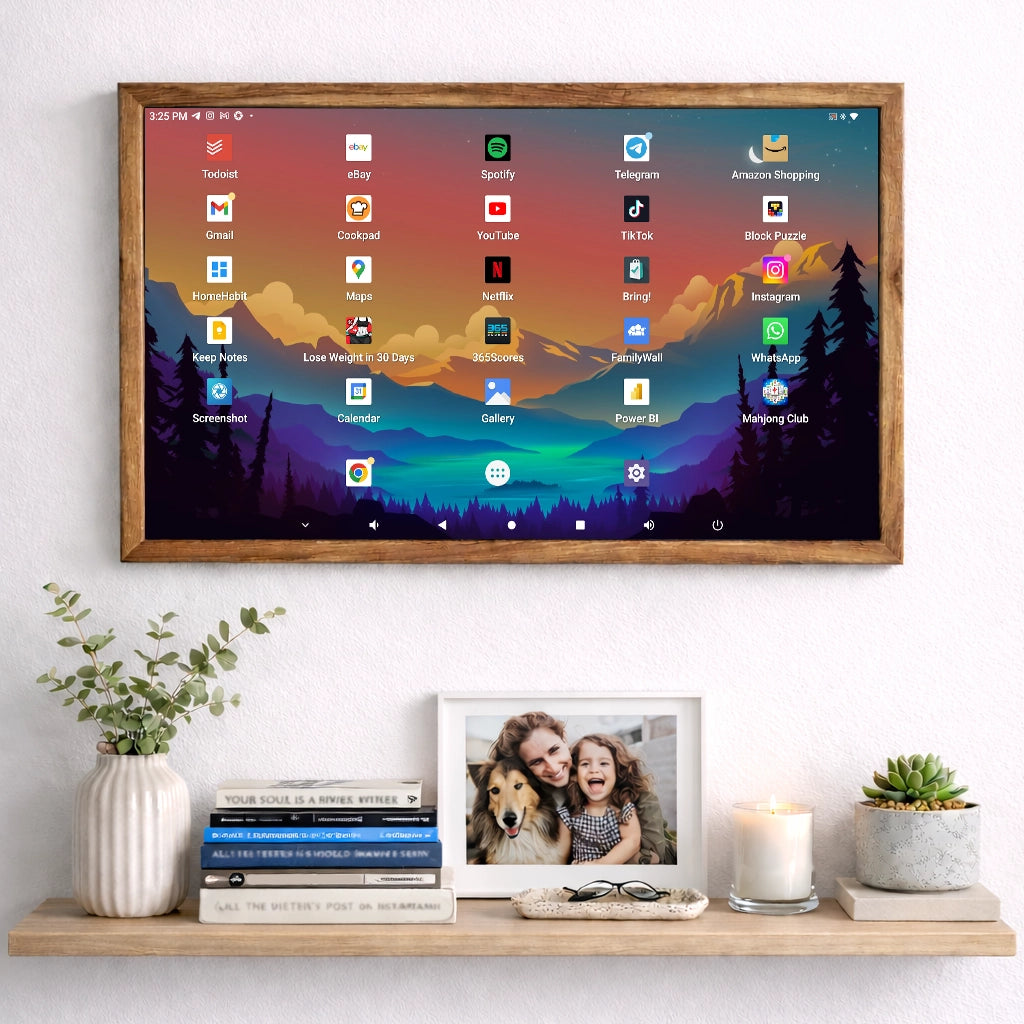
If you are buying such Android display from us, the Reolink app can be pre-installed for you. Or follow these steps if you want to perform the installation on your own. First, connect the Android display to the internet and sign in to Google Play Store. Search for “Reolink” and choose the official Reolink app. After installation, open the app and sign in to your account if you use cloud features or remote access.
If the cameras are already configured on your phone, the process will feel familiar. You need to add the devices to the app on the Android display. This can usually be done in several ways: UID, local network search, or IP address. For a display located at home or in the office on the same network, the most convenient method is usually LAN search. The app may detect compatible devices in the same subnet, after which you need to enter the camera username and password.
If the camera is not found automatically, check whether the Android display and the cameras are connected to the same router or VLAN. A common mistake is that the cameras are on one network while the Android display is connected to a guest Wi-Fi network where access to local devices is blocked. In that case, the app may not see the cameras through LAN.
If LAN search does not work, use UID or IP address. UID is convenient for remote access and adding a camera without manual searching. IP address is useful in a more advanced setup where cameras already have static addresses or DHCP reservations configured in the router.
How to Display Several Reolink Cameras on One Screen
After adding the cameras, open the Reolink App and go to live view. To view several cameras, use multi-view or immersive preview mode, depending on the app version and interface. In this mode, you can see several video streams in one interface and switch the display layout.
On a large 24-inch display, horizontal orientation is usually the most convenient, if it is correctly supported by your device and the app. If the Reolink App interface on a particular Android display works mainly in vertical orientation, this should be checked in advance. Not all Android panels behave equally well with mobile apps, especially when used permanently on a wall.
A practical recommendation: first add 2–4 cameras and check stability. Then add the rest. If everything works smoothly, you can leave live view running permanently. If delays, freezing, or strong heating appear, switch the general view to a lighter stream.
Reolink cameras usually offer different viewing quality modes: a clearer stream for detail and a lighter stream for smoother viewing. For a general video surveillance screen, it is often more reasonable to use Fluent stream and switch to Clear stream only when opening one camera full-screen. This reduces the load on the Android display, the network, and the cameras.
How to Arrange the Camera Order Correctly
Camera order matters. On a large screen, the upper and first positions are perceived as the most important. Therefore, it is not a good idea to leave cameras in a random order. It is more logical to arrange them by priority: front door, gate, yard, parking area, garage, and then interior zones.
For a home, a good order could be: Doorbell, Front Yard, Driveway, Garage, Backyard, Terrace. For a shop: Entrance, Cash Desk, Sales Area, Storage, Back Door. For an office: Reception, Corridor, Meeting Room, Server Room, Parking.
If the app allows you to change the device order, configure it once and check how it looks specifically on the 24-inch display. The goal is that a person should understand what is happening in the important zones within 2–3 seconds, instead of searching for the right camera in a list.
Optimal Settings for Continuous Viewing
For a permanent video surveillance panel, not only the cameras matter, but also the Android display itself. Disable automatic sleep mode if the display must work continuously. Set the brightness so that the screen is readable during the day and does not blind you at night. If the device supports a brightness schedule or night mode, use it.
Keep the display connected to permanent power. You can view Reolink cameras on a tablet, but a battery-powered tablet used as a permanent monitor is a weak solution. It will heat up, discharge, and wear out the battery faster. For a stationary panel, it is better to use a display designed for long-term operation from mains power.
It is also useful to enable automatic launch of the required mode after reboot, if your Android display supports it. For commercial use, kiosk mode can be useful: the user sees only the Reolink App and cannot accidentally close the app, open settings, or change the system.
Wi-Fi or Ethernet: Which Is Better for Reolink on a Large Screen
For security cameras, network stability is more important than maximum speed in marketing specifications. If the Android display supports Ethernet, that is the better option. A cable reduces latency and lowers the risk of freezing. This is especially important if several cameras are open on the screen at the same time.
If Wi-Fi is used, the display must be placed in an area with a strong signal. The cameras must also have a stable connection. You should not expect a good image from four Wi-Fi cameras if two of them are far from the router behind several walls. In such cases, it is better to install a mesh system, a separate access point, or move critical cameras to PoE.
For local viewing, it is preferable for the video stream to stay inside your network rather than go through a remote connection. This reduces latency and does not depend on external internet access. If the internet temporarily goes down, the local system may still continue working if the cameras, display, and router are on the same network and the app has local access to the devices.
How Many Cameras Can Realistically Be Viewed at the Same Time
There is no exact universal number. Everything depends on camera resolution, selected stream, codec, Android display performance, and network quality. Two or four cameras are usually a realistic scenario for most everyday use cases. A larger number of cameras may also be possible, but it needs to be tested.
If you want to see many cameras at the same time, use the lighter stream for the general overview. If you need to see a face, license plate, or small details, open the specific camera in high quality. This approach is more practical than trying to constantly decode all cameras at maximum resolution.
For 8 or more cameras, it is better to test the system in advance. If the Android display starts slowing down, the image lags, the app closes, or the device overheats, the problem is not necessarily Reolink. In that case, a more correct solution would be an NVR or a computer client.
Specifics of Battery-Powered Reolink Cameras
If you have battery-powered Reolink cameras, you need to consider power-saving behavior. Such cameras do not always behave like PoE cameras designed for constant live view. They may enter standby or sleep mode to save battery and wake up when accessed from the app or when a motion event occurs.
Therefore, for a permanent video surveillance screen, PoE cameras, wired Wi-Fi cameras with constant power, or cameras connected to an NVR or Home Hub are usually better suited. Battery-powered models are convenient for places without cables, but continuous viewing may drain the battery faster and may not always be as stable as with wired cameras.
If your goal is a true 24/7 monitoring panel, you should not build it only on battery-powered cameras without testing. They are good for notifications, events, and remote access, but they are not always ideal for continuous multi-camera live view.
Common Problems and Solutions
If the Reolink App does not see cameras on the local network, check whether the Android display is connected to guest Wi-Fi. Guest networks often isolate devices from each other. Also check VPN, firewall settings, different subnets, and router configuration.
If the image freezes, switch the camera from Clear to Fluent stream. This is the fastest test. If everything works normally in Fluent mode, the problem is most likely related to load, network bandwidth, or decoding on the display.
If the image appears with a long delay, check the Wi-Fi signal of both the cameras and the display. For PoE cameras, check the switch, cables, and power supply. For Wi-Fi cameras, try temporarily moving the camera closer to the router. If the delay disappears, the problem is in the wireless network.
If the app works unstably on the Android display, update the Reolink App, update camera firmware, and restart the router, cameras, and the display itself. Also check the hardware decoding setting if it is available. On some devices, hardware decoding helps; on others, it may cause artifacts or freezing. This must be tested on the specific device.
Security: What You Should Not Ignore
A large camera screen is often installed in a visible place. Therefore, think about who has physical access to it. You should not leave administrative access to cameras in a place where an unauthorized person could change settings, delete a device, or view recordings.
Use strong passwords for cameras and NVRs. Do not leave default passwords. Keep camera firmware and the app updated. For business use, it is advisable to separate the camera network from the main work network, especially if the cameras are installed in an office, shop, or warehouse.
If the display is located in a public area, it is better to use it only as a viewing screen, not as a full administrative console. For managing camera settings, keep a separate phone, computer, or protected account.
Reolink App on an Android Display or NVR: Which Should You Choose
An Android display with the Reolink App is a good option if you need a simple and clean live view on a large screen. It is fast, understandable, and does not require a separate computer. This approach works especially well for 2–6 cameras, home use, and small businesses.
An NVR is better if you need continuous recording, many cameras, high reliability, monitor output, archive storage, and centralized management. Reolink Client on a computer is better if you want a more flexible interface, a large monitor, mouse, keyboard, and stable work with a larger number of streams.
In other words, an Android display is a convenient monitoring panel. An NVR is the foundation of a recording system. A computer client is a more powerful working tool. In an ideal system, they can complement each other: the NVR records, the phone sends notifications, and the 24-inch Android display shows live view.
A Practical 30-Minute Installation Scenario
Connect the Android display to Wi-Fi or Ethernet. Install the Reolink App from Google Play. Sign in to the app. Add cameras via LAN, UID, or QR code. Check that each camera opens individually. Then enable the multi-camera viewing mode. Arrange the cameras in the correct order. For the general overview, select Fluent stream. Open an important camera in Clear stream only when details are needed.
After that, test the system for several hours. Check whether the display heats up, whether the app closes, whether the screen goes to sleep, and whether Wi-Fi disconnects. If everything is stable, you can mount the display in its permanent location.
FAQ
Can I display Reolink cameras on an Android tablet?
Yes. If the tablet supports the Reolink App, you can install the app, add cameras, and view live video. But for a permanent wall-mounted panel, it is better to use a device with permanent power and proper cooling.
Can I watch all Reolink cameras at the same time?
You can watch several cameras in one Reolink App interface. But the number of cameras that can be displayed comfortably depends on the app, screen size, orientation, device performance, and selected stream quality.
Do I need a Reolink NVR to display cameras on an Android display?
Not necessarily. Cameras can be added directly to the Reolink App. But an NVR is useful if you need continuous recording, centralized archive storage, and a more reliable system for a larger number of cameras.
Can I use a 24-inch Android display instead of a security monitor?
Yes, if the task is convenient live view. But if the task is professional 24/7 monitoring with many cameras and archive storage, it is better to consider an NVR or computer client.
Why do Reolink cameras lag on an Android display?
The most common causes are weak Wi-Fi, too many cameras at the same time, Clear stream instead of Fluent stream, a weak display processor, overheating, or hardware decoding issues.
What kind of display should I choose?
It is better to choose an Android display with Google Play, touch control, stable Wi-Fi or Ethernet, sufficient performance, the ability to disable screen sleep, and proper support for horizontal orientation.
Displaying Reolink cameras on one large 24-inch Android display is entirely possible. The simplest way is to install the official Reolink App, add all cameras or an NVR, enable multi-camera viewing, and configure the display order. For homes and small businesses, this is a convenient way to create a dedicated video surveillance panel without a computer or complex integration.
The main thing is not to overestimate the capabilities of the Android display. For 2–4 cameras, this solution usually makes sense. For a large number of cameras, continuous recording, it is better to use an NVR or Reolink Client. The right setup depends not on the desire to “display everything on the screen,” but on the real load: how many cameras, what resolution, what network, and how critical stability is.
If the installation is approached correctly, a large Android display becomes a simple and clear monitoring center: Reolink cameras are always visible, control remains familiar, and the entire system does not require complicated configuration.